
By automating business processes, organizations can save time and effort, reduce the error rate and increase the efficiency of their workflows. With Power Automate, Microsoft offers a powerful tool that can be easily integrated into existing processes as part of the Microsoft 365 suite. This saves you unnecessary paperwork and ensures that your defined processes are adhered to.
What is Power Automate?
Power Automate is a tool developed by Microsoft for automating business processes. It enables users to create workflows that can automatically execute actions between different applications and services.
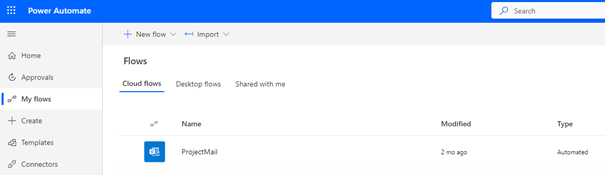
Power Automate offers a comprehensive range of tools and functions that make it possible to map and automate a wide variety of processes. These include
- Templates, These are preconfigured workflows that users can quickly and easily adapt to their needs.
- Actions are the individual steps in a workflow that are executed to automate processes.
- Trigger allow users to trigger actions when certain conditions are met.
- Integrations enable Power Automate to integrate seamlessly into a wide range of applications and services.
- Analytics provide users with insights into the progress and effectiveness of their workflows so that they can optimize them.
Five possible applications of Power Automate
1. approval workflows and electronic forms
Are you still planning your employees' absences and vacations using an Excel spreadsheet? Do you struggle to keep track of who is on vacation and when? If you have approval processes for your company, for example for absences, budget approvals or travel expenses, you can create a workflow that automatically sends an email to the relevant people asking for their approval. Once approval has been granted, the process continues automatically.
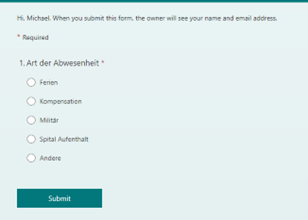
Use Microsoft Forms to create an electronic form that your employees can use to conveniently enter planned absences, for example. A Microsoft Power Automate Flow is triggered in the background and the line manager is automatically informed by e-mail and can approve or reject the absences directly via the form. Approved absences can also be entered in an Outlook calendar as part of such a workflow. This means you always have an overview.
2. automated e-mail notifications
Imagine you have an online store and regularly receive orders. Instead of manually sending an email to your customers every time, you can create a workflow that automatically sends them an email with order confirmation and shipping details. This saves you time and reduces the risk of errors, as all steps run automatically.
3. plan social media posts
If you run social media marketing for your company, you can create a workflow that automatically schedules and manages posts for different platforms. You can also set up an approval function to ensure that all posts are in line with the brand identity and company guidelines.
4 Automated data collection and processing
If you regularly have to process large amounts of data in your company, you can create a workflow that automates the collection and processing of data. This can be helpful, for example, when monitoring sales figures or analyzing marketing campaigns. The workflow can be set up to automatically collect data from various sources, such as social media platforms or internal databases. The data can then be automatically merged and analyzed in a central dashboard. This saves time and increases the efficiency of data evaluation.
5. project-related e-mail filing in SharePoint
Do you work on a project basis and want to ensure that no important emails or documents are lost between different employees and customers? One possible application of Power Automate could be scanning the subject of an email for specific keywords or project numbers. If the relevant criteria are met, the email and all attachments are automatically stored in SharePoint.
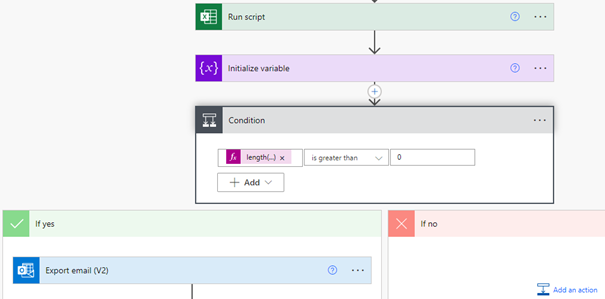
Filing can be carried out using various parameters. For example, emails that contain a project number in the subject could be filed in a folder with this project number.
How much will Power Automate cost me?
As an integral part of the Microsoft 365 productivity tools developed by Microsoft, Microsoft 365 customers have access to Power Automate as part of their subscription and can use it to automate and optimize their work processes.
In addition, Power Automate users can integrate their workflows into other Microsoft applications and services that are also part of the Microsoft 365 suite, such as Outlook, SharePoint and Teams. Of course, a variety of other applications such as Salesforce, GitHub or Twitter are also supported. These integrations make it easy to create workflows that are seamlessly integrated into the user's workflow and increase productivity and efficiency.
You can easily eliminate sources of error and avoid idle time with a solution that integrates seamlessly into your existing Microsoft 365 subscription. And all without having to purchase a new, additional tool.
Nexpert - Your partner for automation with Microsoft Power Automate
With Power Automate, you can automate and optimize everyday tasks to save time and resources and increase efficiency. These examples are just a small selection of the many possibilities that Power Automate offers. Of course, Power Automate can also be used to map very complex processes and applications.
At Nexpert, we have a wealth of experience in the use of Power Automate. Our experts can advise and support you in the implementation of Power Automate and other automation tools. We have already helped numerous companies to save time and resources and simplify their work processes. Contact us with your request! We look forward to the challenge.